

How to Download YouTube Videos on iPhone
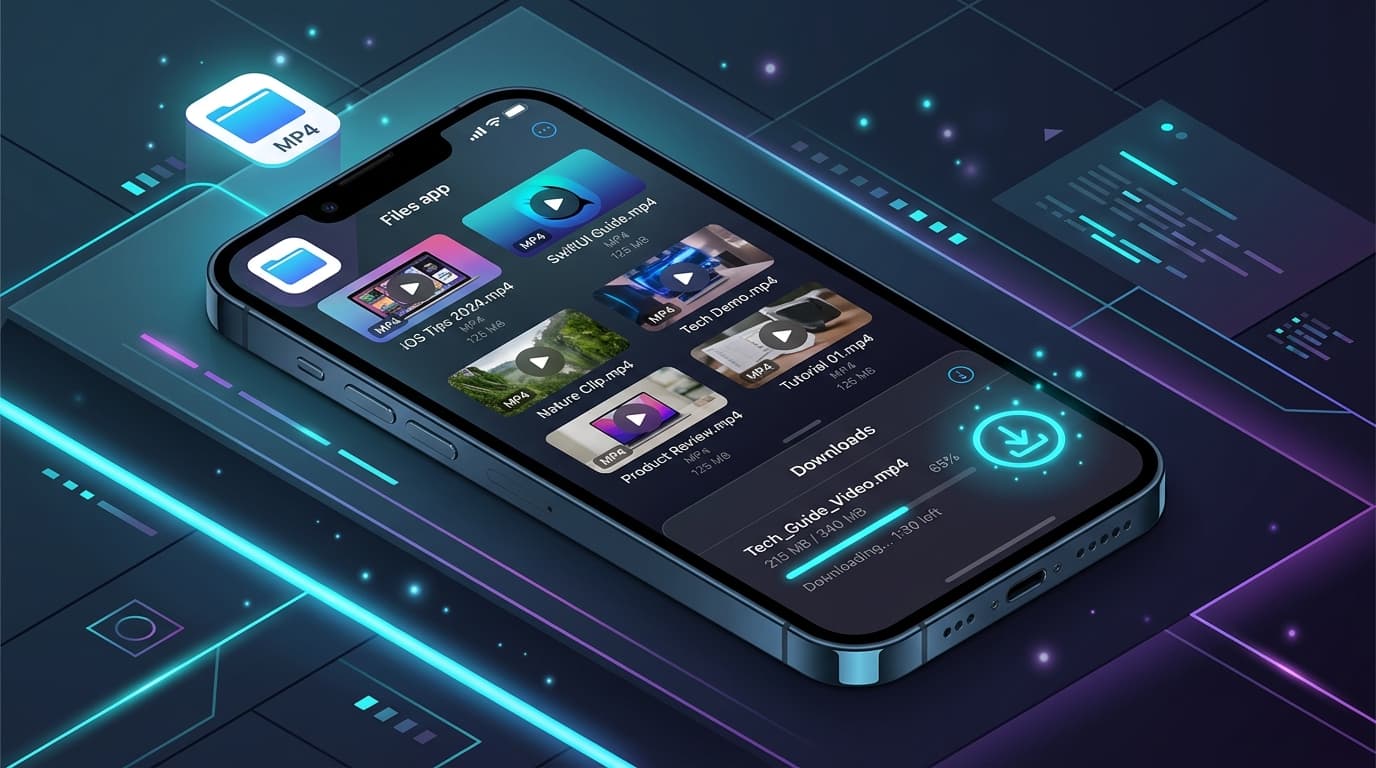
Saving YouTube videos on an iPhone has become remarkably simple with modern versions of iOS. In the past, Apple’s strict sandboxing required third-party file manager apps just to handle downloaded media. Today, built-in Safari download management and the native Files app make saving video files straightforward.
Whether you are preparing for a long flight, saving your own content for mobile editing, or keeping tutorials handy where cell reception is spotty, this step-by-step tutorial walks you through the entire process on iOS.
Quick Answer
To download a YouTube video on iPhone, copy the video link from the YouTube app or Safari, open AnyVideoDownloader in Safari, paste the link, choose your preferred format (MP4 or MP3), and tap Download. Safari will save the file directly to your Files app (under Downloads), where you can easily view it offline or share it to your Photos app (Camera Roll).
Quick Overview & Prerequisites
Before you start, make sure your iPhone is running iOS 13 or later. Starting with iOS 13, Apple introduced a native Download Manager in Safari, allowing direct file downloads without requiring third-party browser utilities or complex shortcuts.
All you need is your iPhone, the Safari web browser, and an internet connection to fetch your desired video.
Official YouTube In-App Downloads vs. Standalone File Saving
It is important to understand the fundamental difference between YouTube’s official in-app offline feature and saving a standalone video file:
1. YouTube In-App Offline (YouTube Premium)
YouTube allows Premium subscribers to tap "Download" within the YouTube mobile app. However, these files are encrypted and cached inside the YouTube app only. You cannot edit them in iMovie, open them in VLC, send them via WhatsApp, or transfer them to another device.
Additionally, your device must reconnect to the internet at least once every 30 days to re-validate licensing.
2. Standalone MP4 File Saving
Saving a genuine MP4 video file gives you complete ownership of that media file on your local storage. You can play it using any media player, edit it directly in CapCut or iMovie, transfer it via AirDrop to your Mac or iPad, and keep it accessible indefinitely without subscription requirements.
How Downloading Works on Safari & iOS
When you tap a download link in Safari on iOS, Safari initiates a download task and displays a circular download icon in the address bar (next to the URL).
By default, Safari routes downloaded media directly to the "Downloads" folder located inside iCloud Drive or locally under "On My iPhone". You can track the real-time download progress right from Safari’s address bar.
Step-by-Step Instructions to Download on iPhone
Follow these simple steps to download and save any video you own or have permission to use:
- 1Step 1: Copy the YouTube Video URL — Open the YouTube app or website, find the video, tap "Share", and select "Copy Link".
- 2Step 2: Open AnyVideoDownloader in Safari — Navigate to our web-based tool.
- 3Step 3: Paste the Link & Choose Your Format — Paste the copied URL into the box below and select MP4 (1080p, 720p) or MP3 audio.
- 4Step 4: Tap Download — Once processed, tap the generated download button. When Safari asks "Do you want to download this file?", tap "Download".
- 5Step 5: Check Download Progress — Look at the small downward arrow icon in Safari’s search bar to view completion.
Online Video Converter & Downloader
Try our free YouTube Video Downloader
Where Downloaded Files are Stored on iPhone
Once the download finishes, your file does not immediately appear in your Photos app. Instead, it lives securely in the iOS Files app.
To locate your video:
- 1Open the pre-installed "Files" app on your iPhone.
- 2Tap the "Browse" tab at the bottom right.
- 3Select "On My iPhone" (or "iCloud Drive", depending on your Safari preferences).
- 4Open the "Downloads" folder. Your downloaded MP4 or MP3 file will be listed there ready for offline playback.
How to Move Videos from Files to Photos (Camera Roll)
If you want the video to appear alongside your camera shots in the iPhone Photos app, follow these two quick steps:
- 11. In the Files app, tap on the downloaded video to open the preview.
- 22. Tap the Share icon (square with an upward arrow) in the bottom-left corner.
- 33. Scroll down the share sheet and tap "Save Video". The video is now instantly added to your Photos library!
Troubleshooting Common iPhone Download Issues
If you run into an issue while trying to download on your iPhone, check these common fixes:
Safari Blocked Pop-ups
If nothing happens when tapping download, Safari might have blocked the action. Check your address bar for a "Pop-up Blocked" prompt, or navigate to Settings > Safari and temporarily toggle off "Block Pop-ups".
Low Device Storage
High-definition videos (especially 1080p and 4K) require ample local storage. Go to Settings > General > iPhone Storage to verify you have sufficient free space.
Download Pauses in Background
iOS may throttle background network activity in Safari if you switch apps during an active download. Keep Safari in the foreground until the progress bar completes.
Ownership & Legal Permissions
Always ensure you have the right to download media. Legitimate reasons for downloading include saving your own uploaded footage, archiving public domain content, downloading Creative Commons licensed materials, or saving tutorials with explicit permission from the creator for offline personal study.
Respect platform Terms of Service and copyright legislation in your jurisdiction.
Main Downloader Tool
Fast, Free YouTube Video Downloader
Convert and download high-definition videos and audio files with no registration, no watermarks, and unlimited speeds.
Go to YouTube Video Downloader →Frequently Asked Questions
Common questions about how to download youtube videos on iphone
Do I need to install an app from the App Store to download videos on iPhone?▾
How do I convert a YouTube video to MP3 on iPhone?▾
Why doesn’t the downloaded video appear in my Photos app automatically?▾
Can I download YouTube videos in 1080p or 4K on iPhone?▾
Is it free to use AnyVideoDownloader on iPhone?▾
Ready to Download Your Videos?
Free online downloader with no sign-up required, no watermarks, and high speed.
Convert & Download VideoKnowledge Base
More Video Downloading Guides
Explore our comprehensive tutorials and platform-specific download solutions.

Can You Download YouTube Videos to Watch Offline? (Everything Explained)
Discover how to download YouTube videos for offline viewing. Understand YouTube Premium limitations, standalone MP4 file saving, device differences, and legal use cases.
How to Download YouTube Videos on Android (Step-by-Step Guide)
Learn how to download YouTube videos on Android smartphones and tablets using Chrome and the Files app. Step-by-step tutorial with troubleshooting tips.

How to Download YouTube Videos on PC (Windows 10 & 11 Guide)
Step-by-step guide to downloading YouTube videos on your PC or Windows laptop without software. Save videos in 1080p, 4K, or MP3 format.

How to Download YouTube Videos on Mac (macOS Guide)
Discover how to download YouTube videos on your Mac using Safari or Chrome. Step-by-step instructions for saving 1080p, 4K, and MP3 files on macOS.
Where Do Downloaded Videos Go on iPhone? (Files vs. Photos Explained)
Find out exactly where downloaded video files are stored on iPhone and iPad. Learn how to locate them in the Files app and save them to the Photos Camera Roll.